If you’re tired of manually chasing down customers with overdue invoices, NetSuite’s Mass Update feature gives you a scalable way to automate your dunning process - complete with PDF invoice attachments. Here’s how to set it up in a few steps.
Use Case:
You want to automatically email overdue invoice reminders to customers once an invoice hits 7+ days past due.
Prerequisites
Before you begin:
- PDF Invoice Template: Make sure your invoice PDF is ready and assigned.
- Set Email Attachment Format: Go to Set Preferences > Transactions > Email Attachment Format and select PDF.
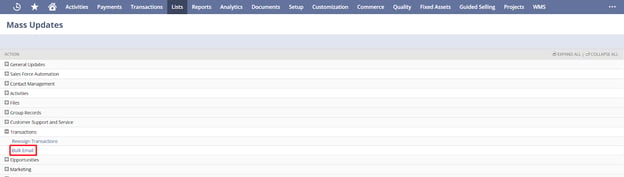
Step 1: Create a Mass Update for Bulk Emailing
Start by creating a Bulk Email Mass Update to automate sending dunning emails for overdue invoices.
Step 2: Set Search Criteria
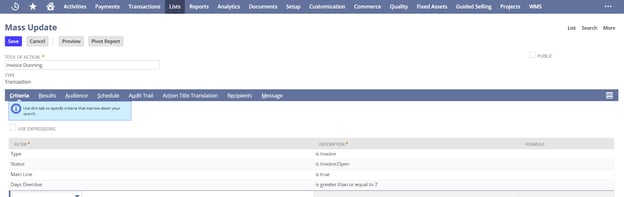
Under Search Criteria, set filters to identify the invoices you want to email:
- Status: Open
- Days Overdue: Greater than 7
You can add additional filters (like Customer Group or Territory) depending on your business rules.
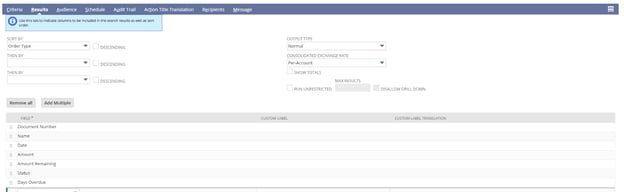
Tip: Add relevant fields to your results view - this helps when sending emails manually using the preview.
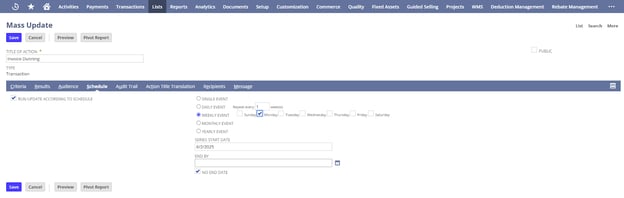
Step 3: Schedule the Mass Update
- Define the Start Date and (optionally) an End Date
- Choose how often you want the update to run (daily, weekly, etc.)
- Check “Run Update According to Schedule”
Only the Mass Update owner can schedule it. To assign scheduling rights, transfer ownership if needed.
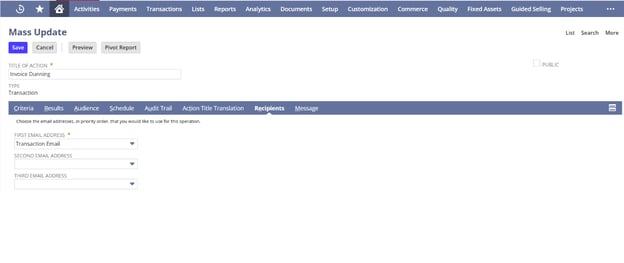
Step 4: Set Email Recipients
The system sends emails based on this order of priority:
- Transaction Email
- Customer Email
- Contact Email
Leave the 2nd and 3rd fields blank if you don’t want those used.
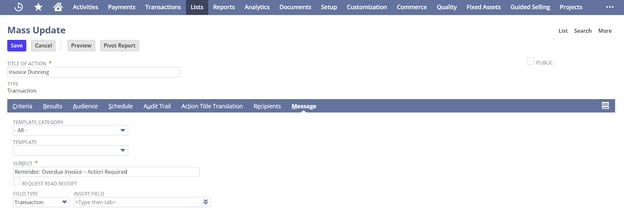
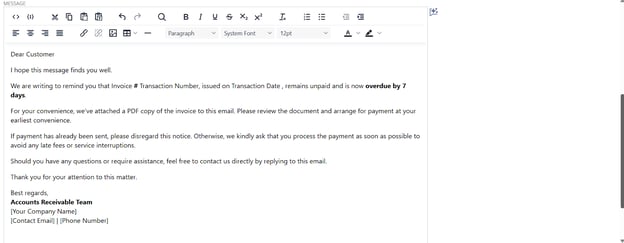
Step 5: Compose the Email
- Set your Subject Line and Email Body
- The invoice PDF will be auto-attached based on your earlier settings
- Save the Mass Update to finalize
Optional: Manually Send Emails from the Mass Update List
Prefer to control things manually? Here’s how:
1. Go to your Saved Mass Update List

2. Click Preview to view matching invoices

3. Adjust filters as needed
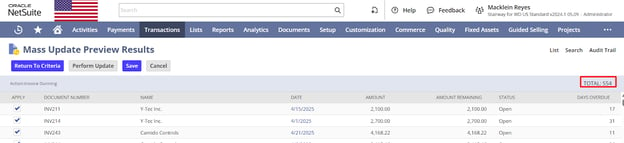
4. Click Perform Update to send emails

Once you click “Perform Update,” there’s no cancel or undo. The process will begin immediately.
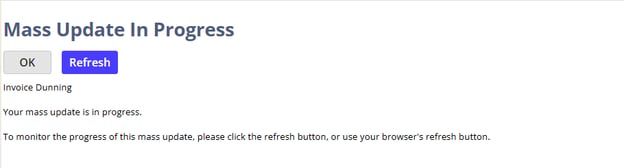
NetSuite’s Mass Update feature is a powerful way to streamline your A/R follow-up. Just be sure your email content is clear and professional, and that your PDF invoice template is configured before launching.
Talk to a NetSuite Expert
Tell us what you're working on, and we'll help you figure out the next step.